 By Angela Thomas
Key Takeaways
- Configure your AI Mini Store’s product catalog and pricing within the “Product Data Manager” module, ensuring all SKUs have accurate descriptions and high-resolution imagery.
- Develop a content calendar for your AI Mini Store’s promotional modules, scheduling dynamic product spotlights and personalized offers at least two weeks in advance using the “Content Scheduler” tool.
- Integrate your AI Mini Store with existing CRM and inventory systems via the “API Integration Hub” to enable real-time data synchronization and personalized customer experiences.
- Establish clear performance metrics and A/B test content variations within the “Analytics Dashboard” to continuously refine your AI Mini Store’s conversion pathways and user engagement.
- Prioritize mobile responsiveness and accessibility during the content creation phase, testing your AI Mini Store across various devices using the built-in “Responsive Design Previewer.”
Launching an AI Mini Store in 2026 demands a careful approach to content strategy, ensuring every interaction drives engagement and conversion. These autonomous, AI-powered storefronts, often embedded within larger platforms or accessible via direct links, rely entirely on their curated content to attract and retain customers. The strategic content for a successful AI Mini Store launch isn’t just about what you show. It’s about how the AI presents it, adapts it, and uses it to personalize the shopping journey. This guide details the step-by-step process for crafting and deploying effective content for your AI Mini Store, providing a roadmap for achieving significant market penetration.
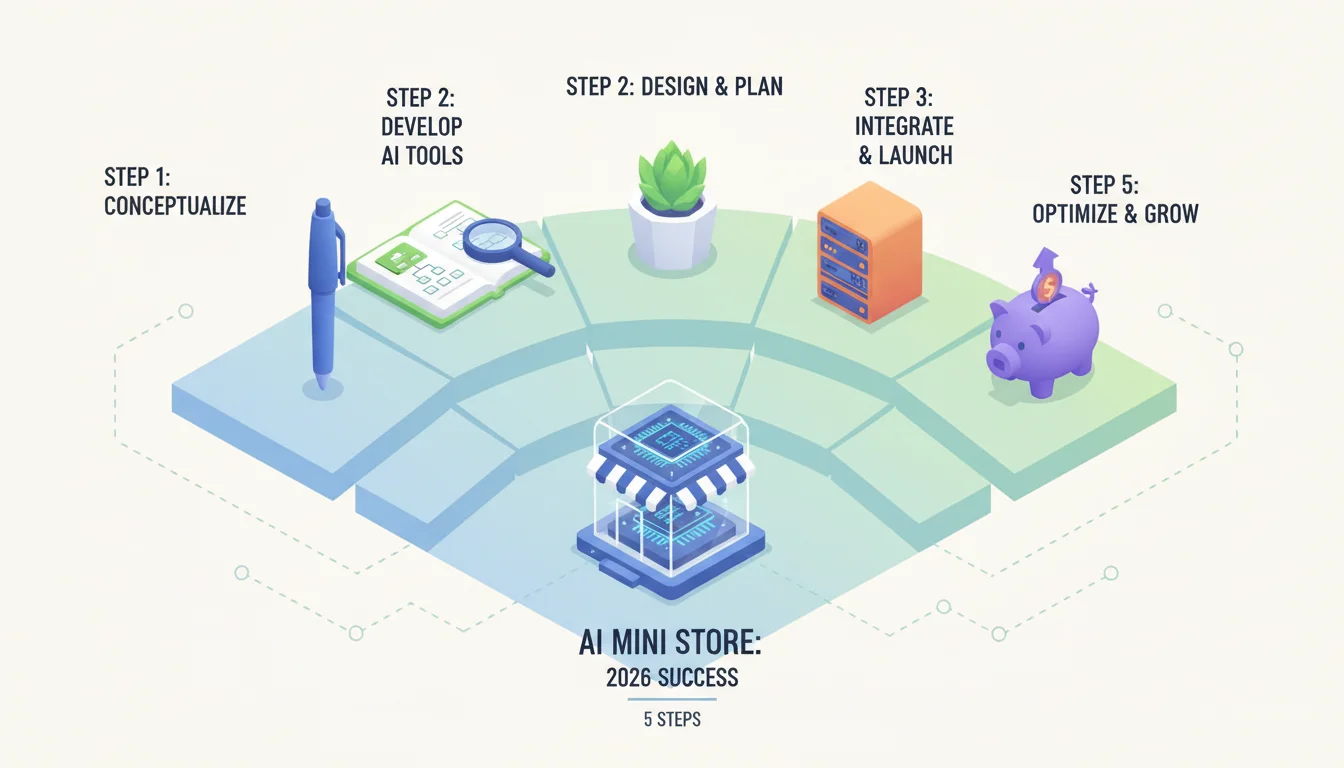
Step 1: Defining Your AI Mini Store’s Core Identity and Product Data
Before any content creation begins, you must solidify the fundamental product data that will fuel your AI Mini Store. This isn’t merely uploading a spreadsheet. It’s about structuring data so the AI can effectively interpret and present your offerings. According to a 2025 IAB report, 78% of consumers expect AI-driven personalization, making strong and well-categorized product data non-negotiable.
1.1 Accessing the Product Data Manager
Navigate to your AI Mini Store platform’s main dashboard. On the left-hand navigation pane, locate and click on “Data Management”, then select “Product Data Manager.” This module is your central hub for all product-related information.
1.2 Uploading and Structuring Product Catalogs
- Within the “Product Data Manager,” click the “Import Data” button. You’ll be presented with options: “CSV Upload,” “API Sync,” or “Manual Entry.” For initial bulk uploads, “CSV Upload” is most efficient.
- Download the provided CSV template by clicking “Download Template.” Populate this template with your product SKUs, names, detailed descriptions (aim for 100-200 words per description, highlighting key features and benefits), pricing, inventory levels, categories, and high-resolution image URLs. We consistently see better AI performance with image resolutions of at least 1024×1024 pixels.
- Ensure your categories are granular. Instead of “Apparel,” use “Men’s Casual Shirts” or “Women’s Summer Dresses.” This level of detail allows the AI to make more precise recommendations.
- After populating, upload the CSV file. The system will process it and flag any errors under the “Import Log” tab. Address these errors promptly.
1.3 Enriching Product Descriptions for AI
This is where many businesses falter. A generic product description won’t cut it. Your AI Mini Store’s success hinges on the AI’s ability to understand and articulate product value. For each product, use the “Description Editor” within the product’s individual detail page. Include:
- Keywords: Integrate relevant search terms naturally.
- Use Cases: Describe scenarios where the product excels. For a smart home device, mention “automating evening routines” or “monitoring pet activity.”
- Benefits: Translate features into customer advantages. “Long-lasting battery” becomes “Enjoy uninterrupted usage for up to 48 hours.”
- Emotional Triggers: How does the product make the customer feel? “Peace of mind,” “convenience,” “style.”
A common mistake here is treating these descriptions like a traditional e-commerce listing. The AI isn’t just displaying text. It’s learning from it to generate dynamic responses and personalized pitches. Think of these as training data for your AI salesperson. If your descriptions are thin, your AI will be unconvincing.
Step 2: Crafting Engaging Visual and Multimedia Assets
Visual content remains paramount, even in an AI-driven environment. Your AI Mini Store will use these assets to create immersive experiences and respond to visual queries. NielsenIQ’s 2024 retail media report highlighted that product images and videos influence 65% of online purchase decisions.
2.1 Uploading High-Quality Product Imagery
- From the “Product Data Manager,” select a product and click “Edit Details.”
- Navigate to the “Media Gallery” tab. Click “Add Images.”
- Upload a minimum of five high-resolution images per product, showing different angles, in-use shots, and lifestyle contexts. The AI is adept at recognizing product features from diverse visual inputs.
- Use the “Image Tagging” feature. Manually add descriptive tags like “front view,” “side profile,” “packaging,” “lifestyle,” “detail shot.” This helps the AI understand the context of each image and present the most relevant one based on user queries.
2.2 Integrating Product Videos and 3D Models
Product videos and interactive 3D models significantly boost engagement.
- In the “Media Gallery” for each product, locate the “Video URL” and “3D Model Link” fields.
- Paste direct links to your hosted videos (e.g., from Vimeo or Wistia) and 3D model files (e.g., GLB or USDZ formats). The AI Mini Store platform natively supports these formats for interactive viewing.
- For product demonstration videos, keep them concise, ideally under 90 seconds, focusing on key benefits and functionalities.
Pro tip: Consider creating short, AI-generated video summaries based on your longer videos. Many platforms now offer tools to do this automatically, and these micro-videos perform exceptionally well in personalized recommendations.
Step 3: Developing Dynamic Promotional Content Modules
Your AI Mini Store isn’t static. It uses dynamic content modules to highlight promotions, new arrivals, and personalized recommendations. These modules are the AI’s primary tools for proactive engagement.
3.1 Configuring Promotional Banners and Carousels
- From the main dashboard, go to “Content & Layout” and select “Promotional Modules.”
- Click “Create New Module.” Choose the “Banner” or “Carousel” template.
- Upload banner images (recommended resolution: 1920×500 pixels) and provide compelling headline text (under 60 characters) and a call-to-action (e.g., “Shop Now,” “Discover More”).
- Importantly, link these banners to specific product categories, collections, or landing pages within your AI Mini Store. The AI will use these links to understand the context of the promotion.
- Under “Targeting Rules,” define audience segments (e.g., “First-time visitors,” “Repeat customers interested in ‘Electronics'”). This allows the AI to display relevant promotions.
3.2 Scheduling Content with the Content Scheduler
Timeliness matters. Use the built-in scheduler to automate content deployment.
- Within “Promotional Modules,” select a created module and click “Schedule.”
- Set the start and end dates and times. You can also configure recurring schedules for evergreen promotions.
- Use the “A/B Test Variant” option here. Create two versions of a banner with different headlines or images. The AI will automatically test and optimize for the best-performing variant based on engagement metrics. This is a powerful feature that many overlook. It provides real-time insights into what resonates with your audience.
Step 4: Integrating with External Systems for Enhanced Personalization
An AI Mini Store thrives on data. Integrating it with your existing CRM, inventory, and analytics platforms unlocks its full personalization potential. A HubSpot report from 2025 indicated that businesses using integrated data for personalization saw a 27% increase in customer lifetime value.
4.1 Using the API Integration Hub
- Navigate to “Settings” on your dashboard, then select “API Integration Hub.”
- You’ll see a list of pre-built integrations for common platforms like Salesforce Marketing Cloud, Shopify Plus, and Adobe Experience Cloud. Click “Connect” next to your desired platform.
- Follow the on-screen prompts to authorize the connection, typically involving API keys and access tokens.
- If your system isn’t listed, click “Custom API Integration” to generate API credentials and documentation for your development team. This allows for real-time synchronization of customer profiles, purchase history, and browsing behavior, which are essential for the AI’s recommendation engine.
4.2 Configuring Data Synchronization Rules
Once integrated, define how data flows.
- Within the “API Integration Hub,” select your connected platform and click “Configure Sync Rules.”
- Map fields between your external system and the AI Mini Store (e.g., “Customer ID” in CRM to “User Profile ID” in Mini Store).
- Set synchronization frequency (e.g., “Real-time,” “Hourly,” “Daily”). For inventory and pricing, “Real-time” is always the best option to prevent stockouts or price discrepancies.
The AI’s ability to recommend products based on a customer’s recent interaction with your main website or their past purchases is directly tied to the quality and timeliness of this synchronized data. Without it, your AI Mini Store is essentially operating blind, unable to offer truly personalized experiences.
Step 5: Monitoring Performance and Iterating Content Strategy
Launching is just the beginning. Continuous monitoring and iteration are vital for long-term success. The AI Mini Store’s performance analytics provide actionable insights.
5.1 Accessing the Analytics Dashboard
From the main dashboard, click “Analytics” to open the complete dashboard.
- Engagement Metrics: Track “Session Duration,” “Bounce Rate,” and “Interactions per Session.” These indicate how well your content holds attention.
- Conversion Funnel: Monitor “Product Views to Add-to-Cart,” “Add-to-Cart to Checkout Initiated,” and “Checkout Initiated to Purchase.” Identify bottlenecks in the user journey.
- AI Recommendation Performance: Look at “Click-Through Rate on Recommended Products” and “Conversion Rate from Recommended Products.” This tells you if your product descriptions and media are effectively guiding the AI.
5.2 A/B Testing and Content Optimization
Use the data to inform your content changes.
- In the “Content & Layout” section, under “A/B Test Manager,” you can set up new tests for product descriptions, banner images, or even call-to-action phrases.
- For example, you might test two different headlines for a new product launch. Version A: “Experience Unmatched Clarity with Our New 8K Display.” Version B: “Your Visual World Redefined: Introducing the 8K Display.” The system will track which version leads to more product page views or purchases.
- Regularly review the “AI Performance Insights” report (found under “Analytics” > “AI Optimization”). This report highlights which content elements (e.g., specific keywords, image types) are driving the most positive AI interactions and conversions. This is an editorial aside: don’t assume you know what resonates. The data will surprise you, so trust the analytics over your gut feeling every time.
The strategic content for an AI Mini Store launch isn’t a one-time effort. It’s an ongoing process of refinement, driven by data and designed to help the AI to deliver unparalleled customer experiences. By carefully structuring your product data, creating compelling visuals, using dynamic promotional modules, and integrating your systems, you position your AI Mini Store for sustained growth and profitability. The future of e-commerce is autonomous, personalized, and built on the foundation of intelligently crafted content.
How frequently should product data be updated in an AI Mini Store?
Product data, especially inventory and pricing, should ideally be synchronized in real-time or at least hourly. Descriptions and imagery can be updated as new information or assets become available, but for critical data like stock levels, real-time integration via the API Integration Hub is important to prevent customer dissatisfaction and optimize sales.
What is the optimal image resolution for AI Mini Store product images?
For optimal display across various devices and to allow the AI to perform detailed image recognition, product images should be at least 1024×1024 pixels. Higher resolutions, such as 2000×2000 pixels, are often preferred for zoom functionality and future-proofing, ensuring visual clarity and detail.
Can AI Mini Stores integrate with custom-built CRM systems?
Yes, AI Mini Store platforms typically offer a “Custom API Integration” option within their API Integration Hub. This provides developers with the necessary documentation and credentials to build a custom connector, allowing for smooth data exchange with proprietary or niche CRM systems.
How do I measure the effectiveness of personalized content in an AI Mini Store?
The “Analytics Dashboard” provides specific metrics for AI recommendation performance, including “Click-Through Rate on Recommended Products” and “Conversion Rate from Recommended Products.” These metrics directly indicate how well the personalized content is engaging users and driving purchases, allowing for data-driven optimization.
What kind of content should be prioritized for A/B testing in an AI Mini Store?
Prioritize A/B testing elements that directly influence conversion and engagement. This includes product headlines, call-to-action buttons, primary banner images, and the first few sentences of product descriptions. Testing these high-impact elements provides the most valuable insights for optimizing your AI Mini Store’s content strategy.


